 ToolGrid AI
Workflows
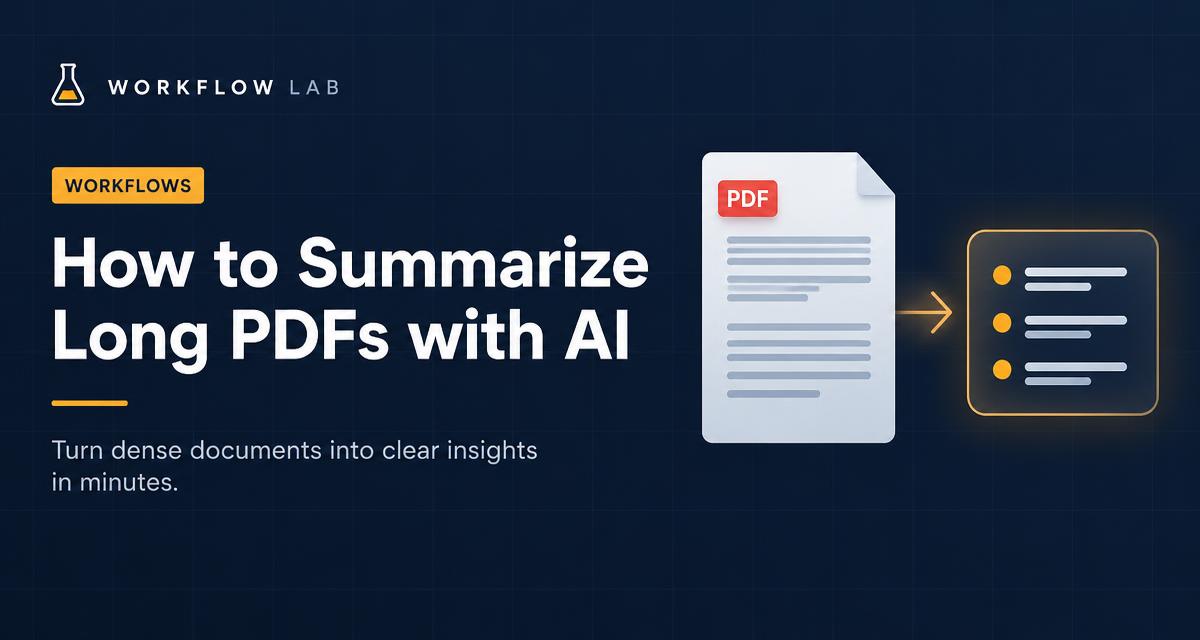
How to summarize long PDFs with AI (without missing what matters)
A practical workflow for turning reports, papers and contracts into accurate summaries using an AI assistant.
By ToolGrid AI Editorial Team · Published
What you need
Most popular AI assistants — including ChatGPT, Claude and Gemini — let you upload a PDF and ask questions about it. Check each tool's current file-size and plan limits on its official help pages, as these change often.
Avoid uploading confidential documents unless you have checked the tool's privacy settings and your organisation's rules.
Step 1: Tell it why you are reading
A summary for a manager deciding on a budget is different from one for a lawyer checking risks. Start with: "I need to decide X. Summarize this document for that purpose."
Step 2: Ask for structure
Request a fixed format, such as: a three-sentence overview, key findings as bullet points, numbers and dates in a table, and open questions. Structure makes gaps easy to spot.
Step 3: Ask for page references
Ask the assistant to cite the page or section for each key point. Then spot-check a few against the original. This is the fastest way to catch mistakes.
Step 4: Drill down
Follow up on the sections that matter: "Explain section 4 in plain language" or "List every deadline mentioned." For very long documents, summarizing chapter by chapter usually gives better detail than one summary of the whole thing.
A reusable prompt
"I'm reading this document to [goal]. Give me: 1) a 3-sentence overview, 2) the 5 most important points with page numbers, 3) all figures and dates in a table, 4) anything unclear or missing. Only use information from the document."
Sources
Related articles
Workflows
How to convert a PDF to Word for free (and when it won't work)
Turn a PDF into an editable Word document in seconds, understand why scanned PDFs behave differently, and fix common problems.
· 2 min read

Workflows
The Pomodoro Technique: a simple guide to focusing for longer
How 25-minute focus sessions work, how to adapt them to your day, and how to pair them with AI tools without getting distracted.
· 2 min read

Workflows
How to repurpose one blog post into a week of content with AI
A step-by-step workflow for turning a single article into social posts, a newsletter, a short video script and more — without sounding robotic.
· 2 min read